Looking up an order (guest)
If a customer isn’t logged in, the widget asks for their Order Number and Email before showing the conversation. This confirms they’re the right person to view and approve that order’s proof.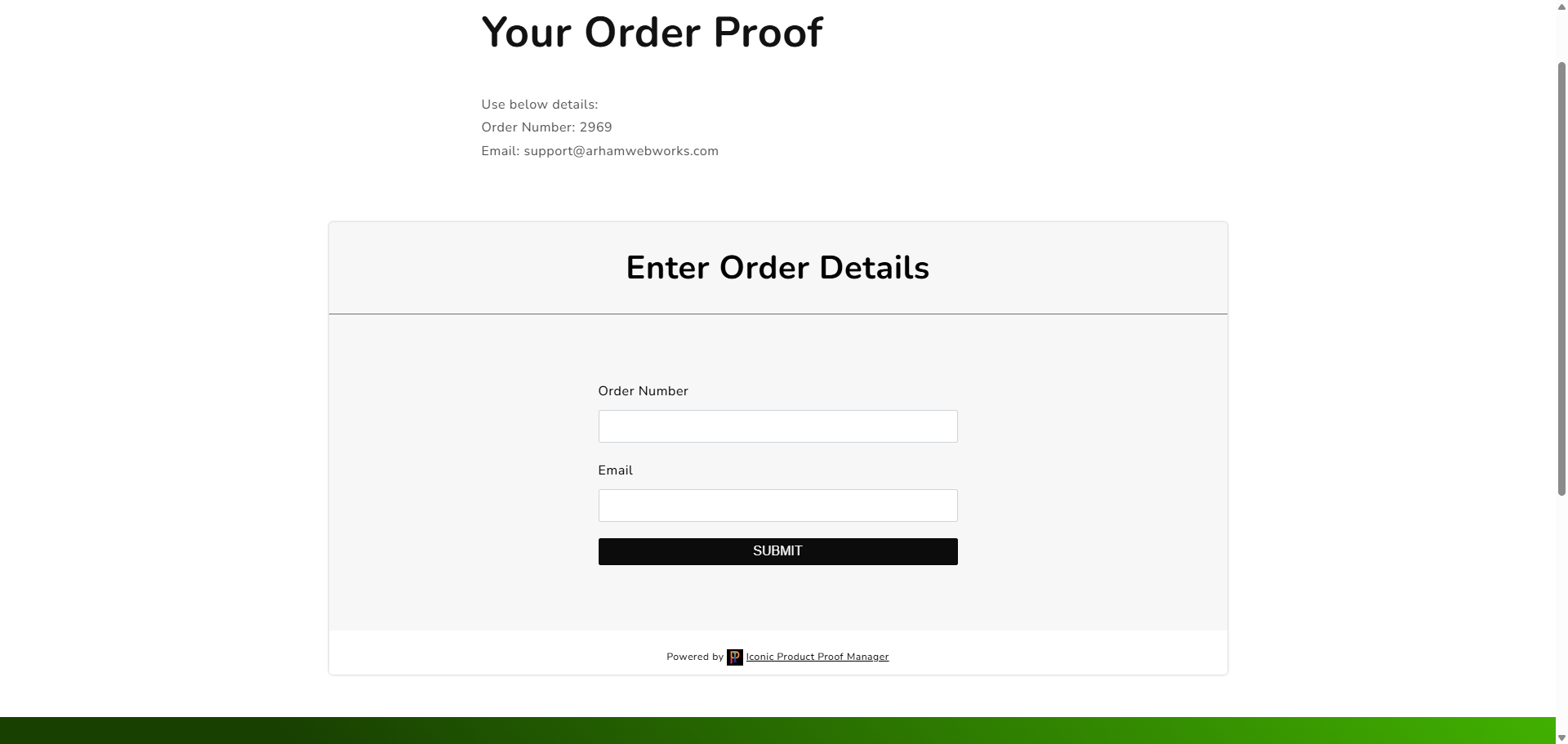
Logged-in customers
If a customer is logged into their account, the widget skips the lookup form and shows their order(s) directly, with a sidebar to switch between multiple orders.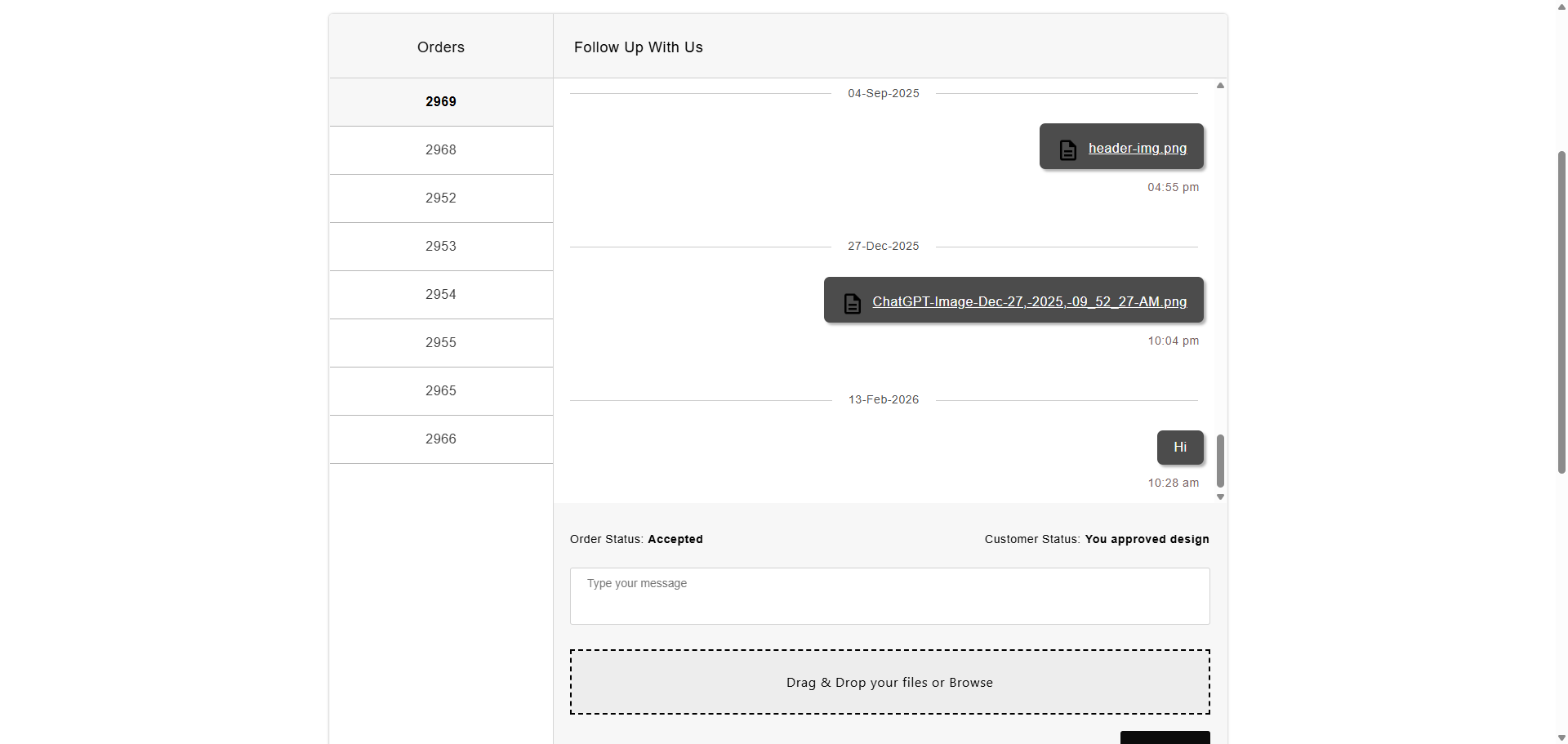
- Read your messages and any attached proof files
- Reply with a message, and attach their own files (e.g. reference images) via drag-and-drop or Browse
- See the current Order Status and Customer Status (their own approval/rejection)
- Pay an invoice, if you’ve sent one, via a Pay your purchase link
Order and customer status
- Order Status reflects your (merchant) status for the order.
- Customer Status is set by the shopper — they approve or reject once you’ve sent a proof. This only becomes visible to them after you attach a proof file, if you’ve enabled that behavior in General Settings.