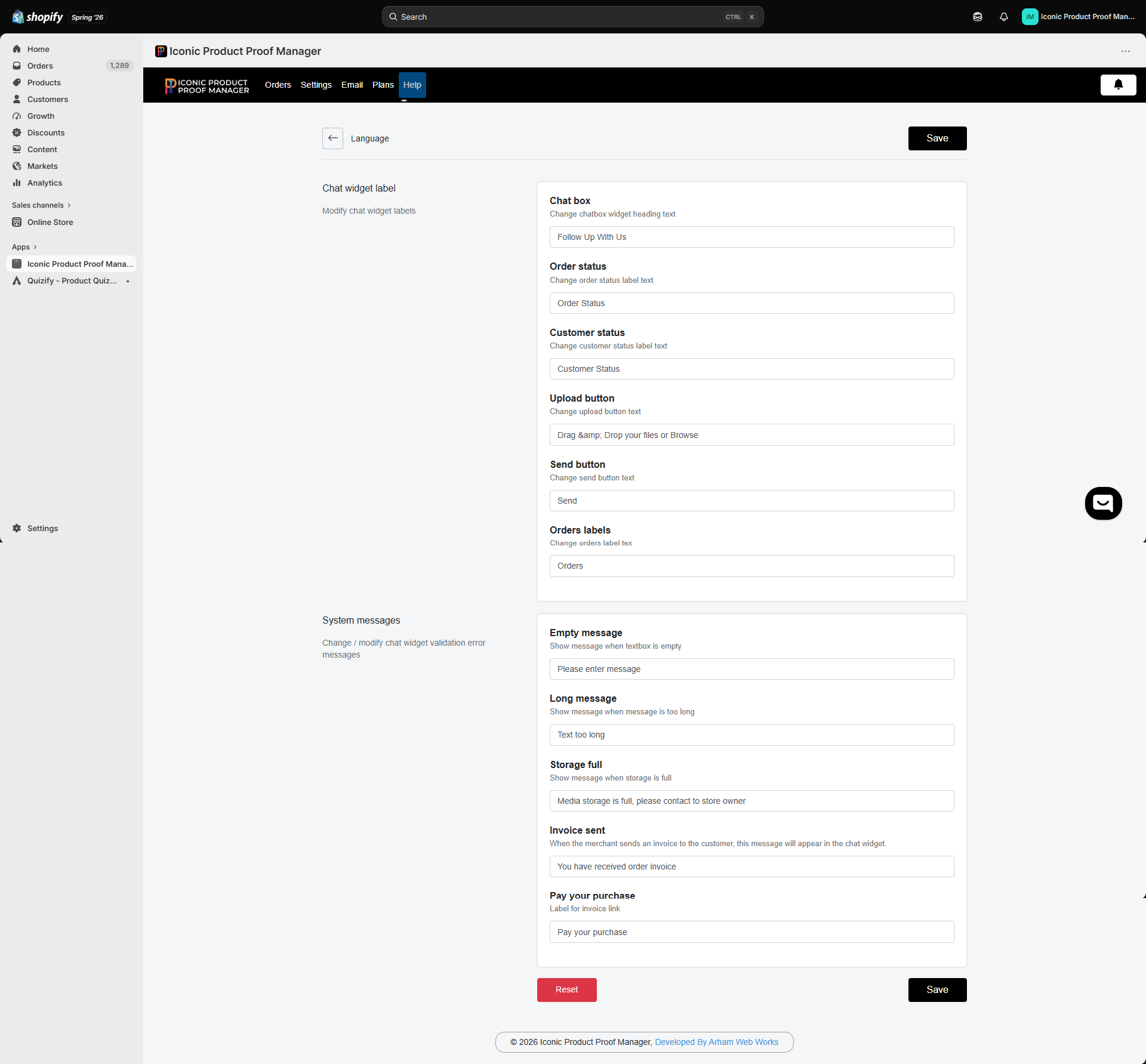
Settings → Language lets you rewrite every piece of text the chat widget shows — useful for translating the widget into your store’s language, or simply changing the tone of voice.
Language settings screen with chat widget labels and system messages

Chat widget labels

FieldDefaultWhere it appears
Chat boxFollow Up With UsWidget heading
Order statusOrder StatusLabel above the order status value
Customer statusCustomer StatusLabel above the customer’s approval status
Upload buttonDrag & Drop your files or BrowseFile upload dropzone
Send buttonSendSend message button
Orders labelsOrdersHeading of the order list sidebar (for logged-in customers with multiple orders)

System messages

FieldDefaultShown when
Empty messagePlease enter messageCustomer tries to send with an empty text box
Long messageText too longThe message exceeds the allowed length
Storage fullMedia storage is full, please contact to store ownerYour plan’s storage limit is reached
Invoice sentYou have received order invoiceYou send an invoice to the customer
Pay your purchasePay your purchaseLabel on the invoice payment link
Edit any field and click Save. Use Reset to restore all labels and messages to their defaults.
These settings only change the storefront widget’s text — they don’t affect email notification content, which is edited separately in Notification Settings.