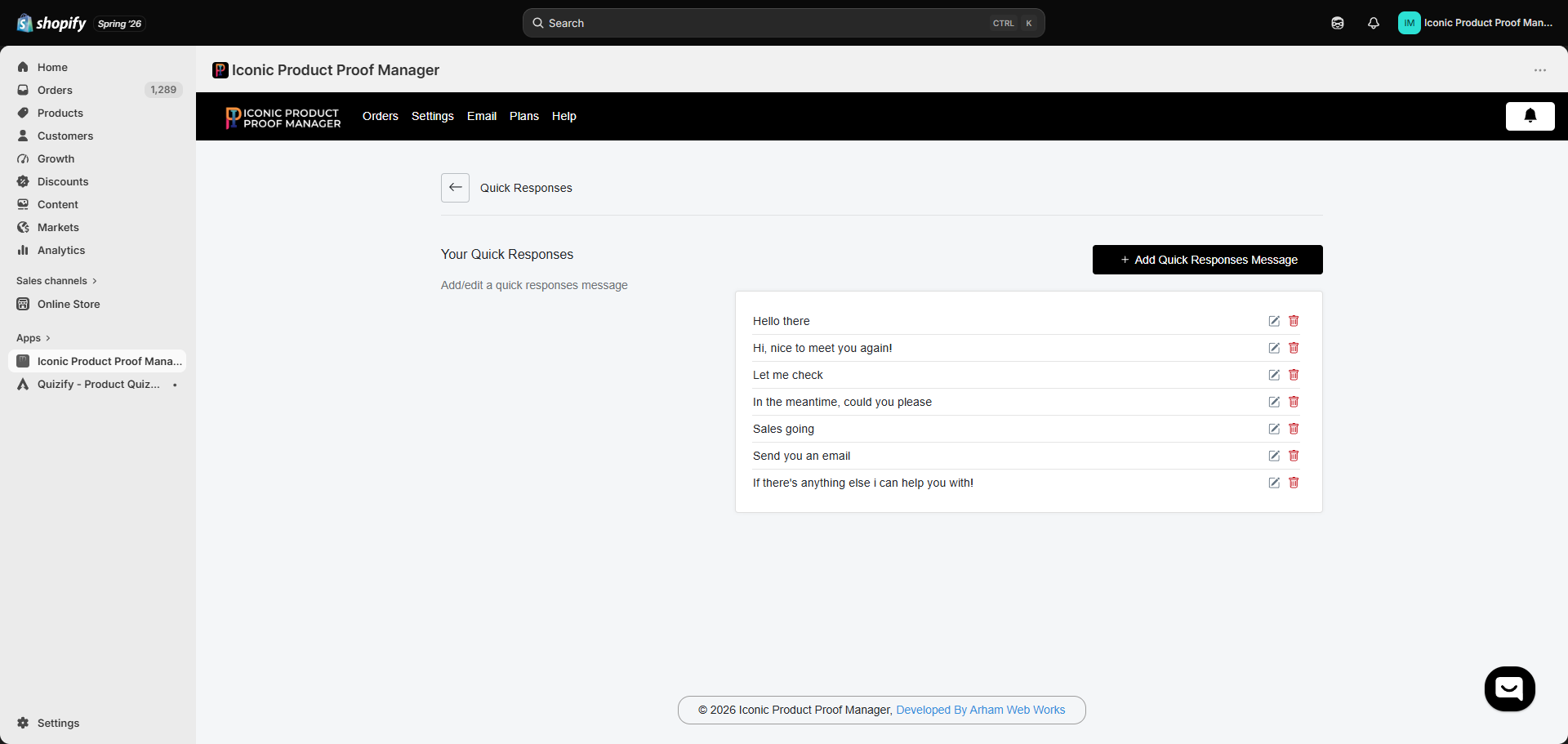
Settings → Quick Responses stores reusable message templates so you don’t have to retype common replies for every order.
Managing your responses
- Click Add Quick Responses Message to create a new canned reply.
- Use the pencil icon to edit an existing one, or the trash icon to delete it.
Once saved, every quick response appears in the Please select quick response dropdown on an order’s chat screen (see Managing an Order) — selecting one drops the text straight into your message box, ready to send or tweak before sending.
Good candidates for quick responses: shipping-time confirmations, requests for more design details, thank-you messages after approval, and standard rejection follow-ups asking for revision notes.