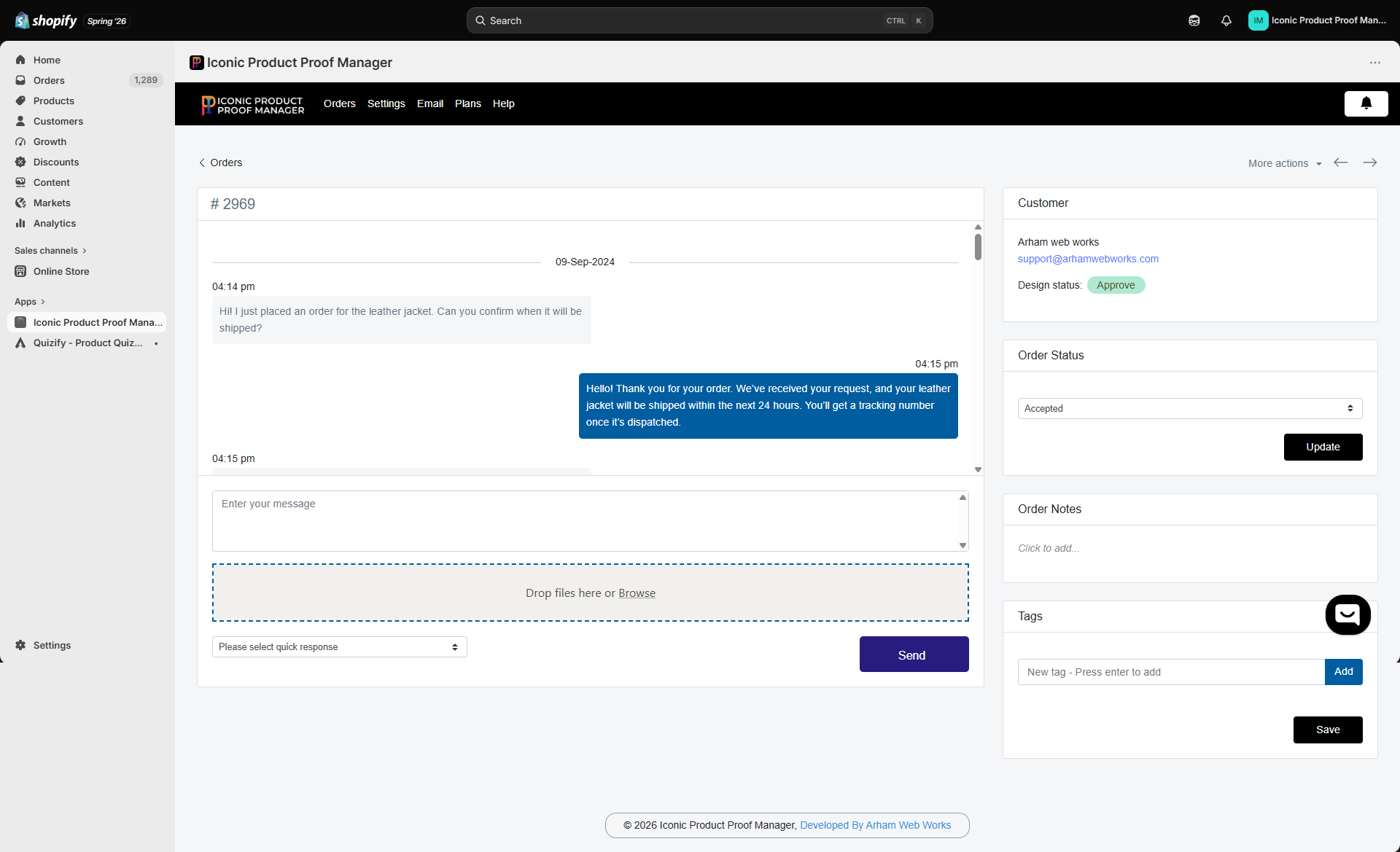
Chat thread
The center panel is a two-way message thread with the customer, grouped by date. To send a message:- Type in Enter your message, or pick a saved reply from Please select quick response (see Quick Responses).
- Optionally drag a proof file into Drop files here or Browse — images and PDFs are supported (see Plans & Pricing for file-type and storage limits by plan).
- Click Send.
If you’ve enabled Invoice in General Settings, you can also send a payment link for extra customization charges from this same panel.
Customer panel
The right-hand sidebar shows:- Customer — name and email, plus their current Design status (
Approve/Reject/ pending) - Order Status — a dropdown you use to set the merchant-side status (
Not Started,Awaiting proof,Accepted,Rejected). Click Update to save. - Order Notes — a free-text field for internal notes only you can see, saved back to the order.
- Tags — add or remove Shopify order tags directly from here; press Enter after typing a tag, then Save.