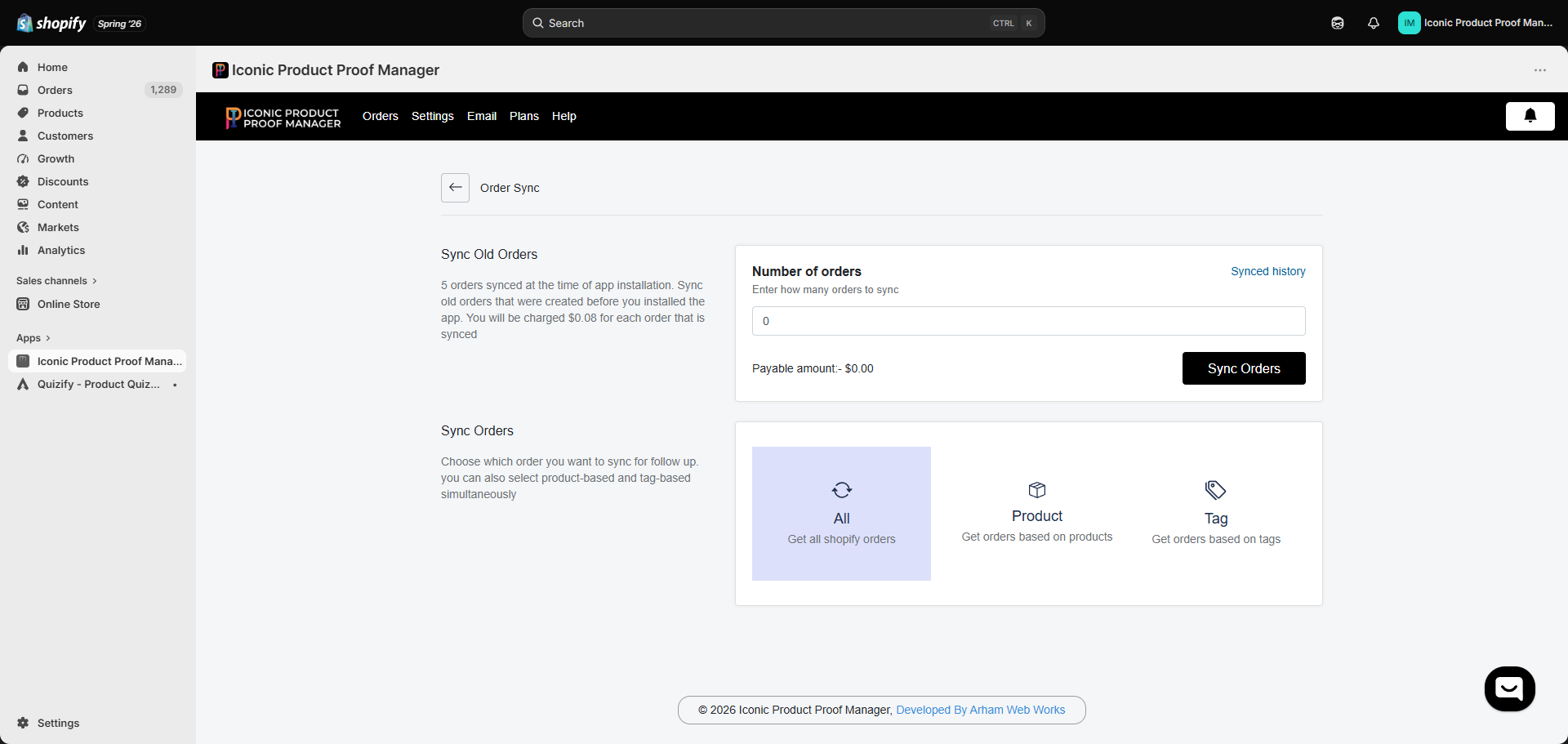
Go to Settings → Order sync to control which orders get pulled in for proof management. New orders that match your rules sync automatically going forward; you can also backfill older orders.
Choose which orders to sync
Under Sync Orders, pick one mode (or combine Product and Tag):
Every order placed on your store is synced. This is the default.
Only orders that contain specific products are synced. Search and select products from your catalog.
Only orders with specific tags are synced. You can also set excluded tags — orders carrying those tags are skipped even if they’d otherwise match.
Tag-based syncing is the most common setup for stores where only some products are made-to-order — tag those orders (manually or with automation) and only they’ll show up for proofing.
Sync old orders
New installs only pick up orders going forward. If you have existing unfulfilled orders that need proofs, use Sync Old Orders:
- Enter the number of orders to pull in.
- Review the payable amount — backfilling old orders is billed per order (shown live as you type, in your store’s currency).
- Click Sync Orders.
Syncing old orders is a metered action billed through Shopify — you’ll see the charge amount before confirming. Orders already synced are automatically excluded, so re-running this won’t double-charge you.