> ## Documentation Index
> Fetch the complete documentation index at: https://proof-manager-docs.geticonicapps.com/llms.txt
> Use this file to discover all available pages before exploring further.
# Customer Experience
> What shoppers see when they use the chat widget
Customers interact with their order proof through a chat widget on your storefront — no account required, though logged-in customers get a smoother experience.
## Looking up an order (guest)
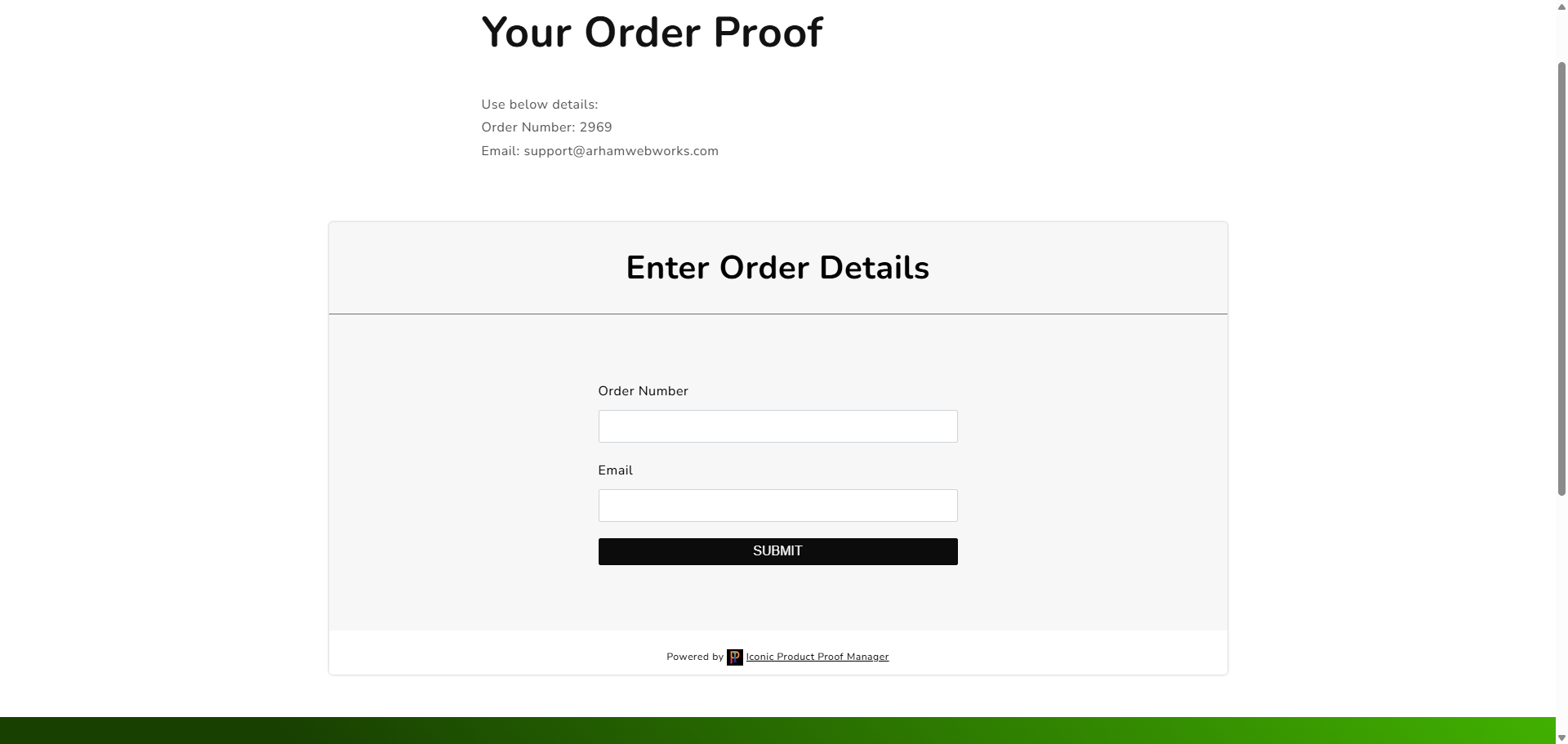
If a customer isn't logged in, the widget asks for their **Order Number** and **Email** before showing the conversation. This confirms they're the right person to view and approve that order's proof.
 ## Logged-in customers
If a customer is logged into their account, the widget skips the lookup form and shows their order(s) directly, with a sidebar to switch between multiple orders.
## Logged-in customers
If a customer is logged into their account, the widget skips the lookup form and shows their order(s) directly, with a sidebar to switch between multiple orders.
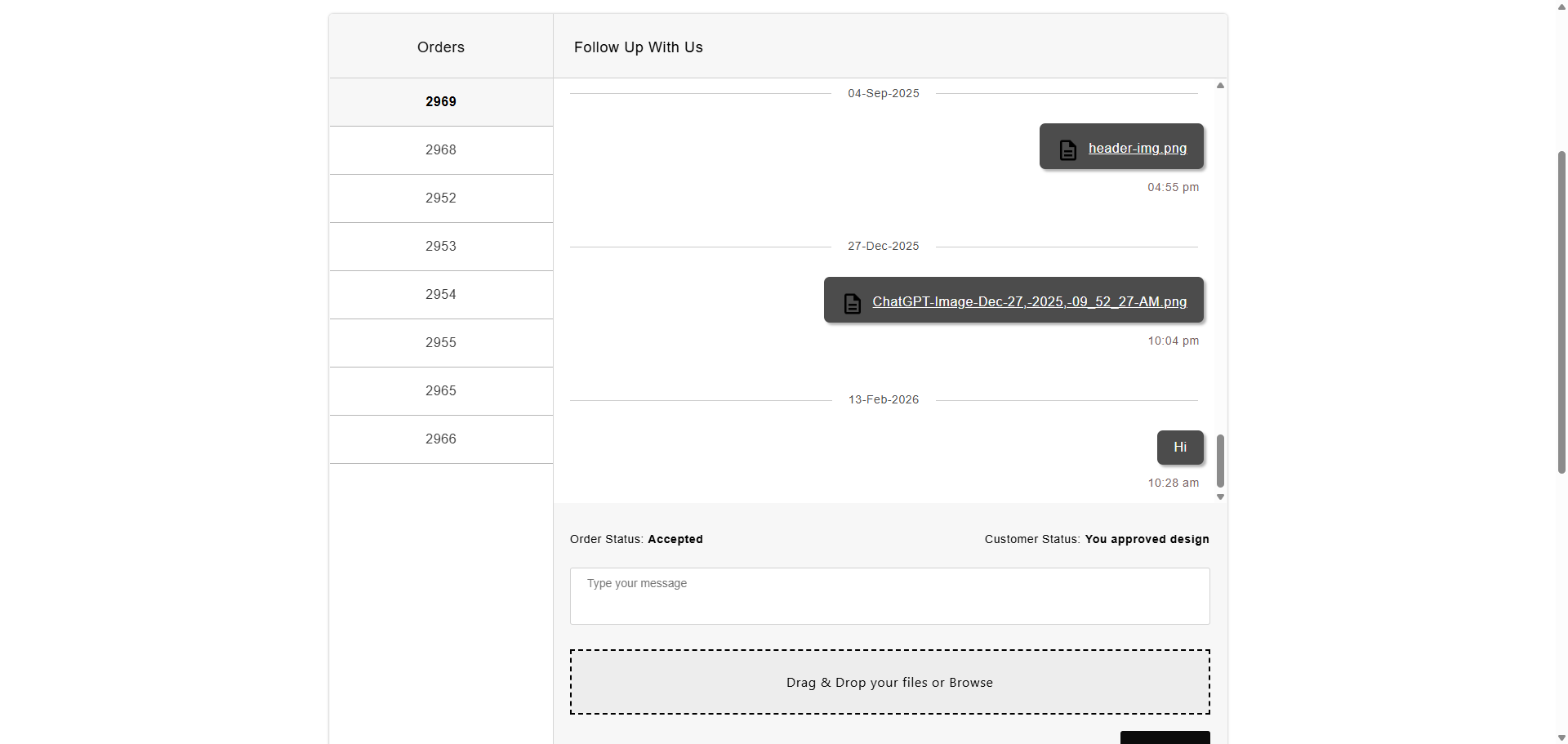 From here, the customer can:
* Read your messages and any attached proof files
* Reply with a message, and attach their own files (e.g. reference images) via drag-and-drop or **Browse**
* See the current **Order Status** and **Customer Status** (their own approval/rejection)
* Pay an invoice, if you've sent one, via a **Pay your purchase** link
## Order and customer status
* **Order Status** reflects your (merchant) status for the order.
* **Customer Status** is set by the shopper — they approve or reject once you've sent a proof. This only becomes visible to them after you attach a proof file, if you've enabled that behavior in [General Settings](/settings/01-general-settings).
All of the labels shown in the widget — the heading, button text, and validation messages — are editable; see [Language Settings](/settings/03-language-settings). The colors and fonts are editable in [Design Settings](/settings/02-design-settings).
From here, the customer can:
* Read your messages and any attached proof files
* Reply with a message, and attach their own files (e.g. reference images) via drag-and-drop or **Browse**
* See the current **Order Status** and **Customer Status** (their own approval/rejection)
* Pay an invoice, if you've sent one, via a **Pay your purchase** link
## Order and customer status
* **Order Status** reflects your (merchant) status for the order.
* **Customer Status** is set by the shopper — they approve or reject once you've sent a proof. This only becomes visible to them after you attach a proof file, if you've enabled that behavior in [General Settings](/settings/01-general-settings).
All of the labels shown in the widget — the heading, button text, and validation messages — are editable; see [Language Settings](/settings/03-language-settings). The colors and fonts are editable in [Design Settings](/settings/02-design-settings).