> ## Documentation Index
> Fetch the complete documentation index at: https://proof-manager-docs.geticonicapps.com/llms.txt
> Use this file to discover all available pages before exploring further.
# General Settings
> Instructions, customer approval visibility, invoicing, and storage
All configuration lives under the **Settings** tab, split into six areas: General, Design, Email notifications, Language, Order sync, and Quick Responses.
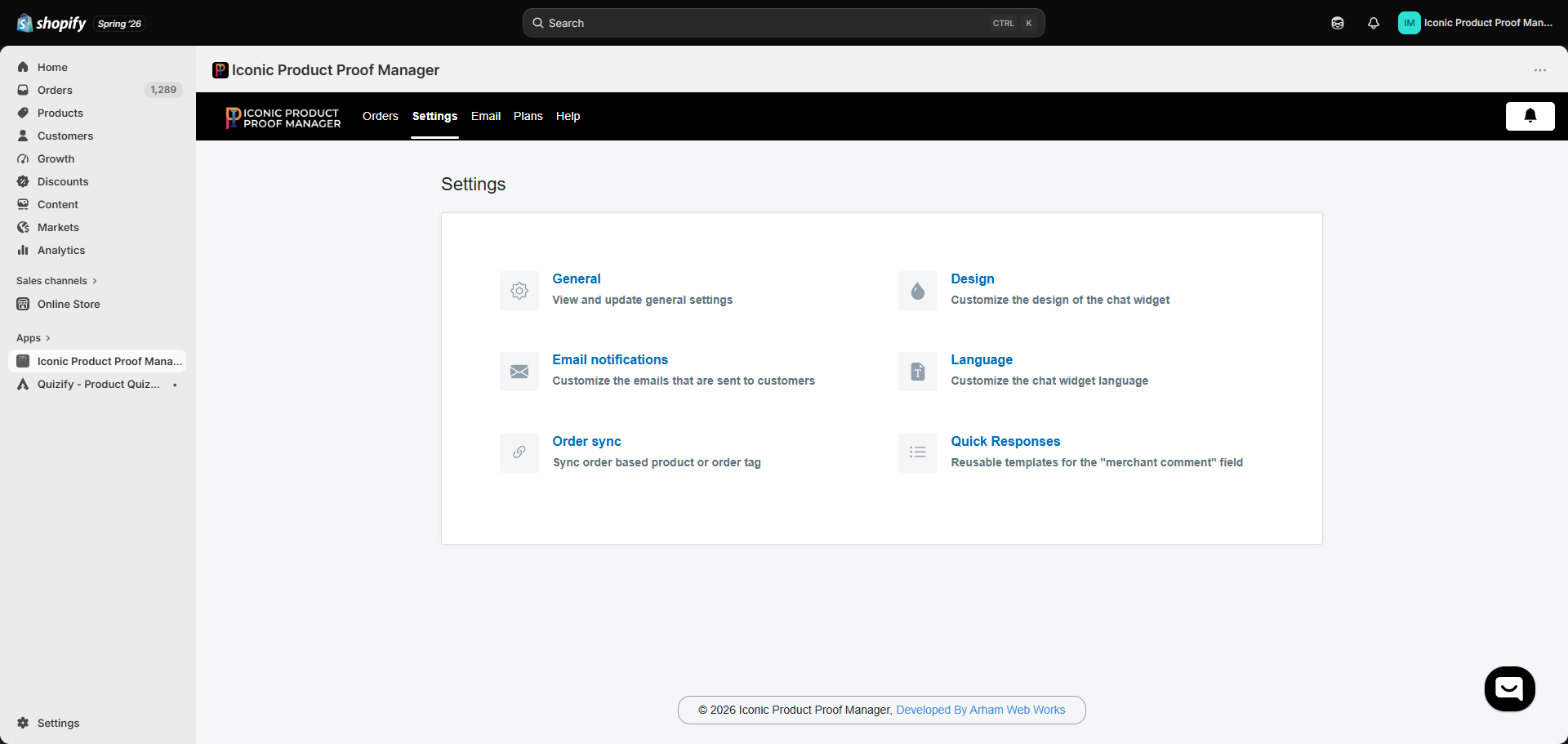 This page covers **General**, which handles the core behavior of the widget and your storage usage.
 ## Instruction
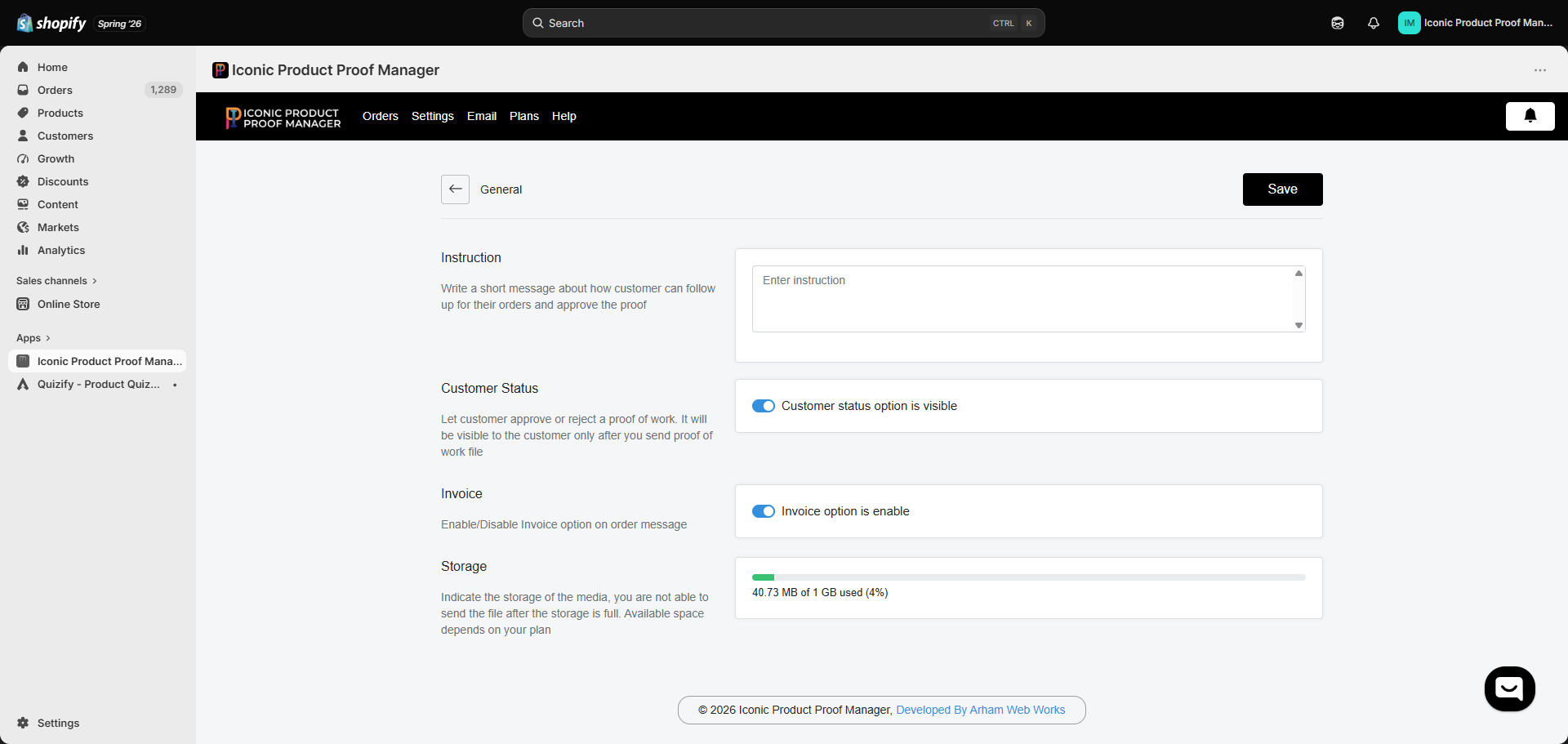
A short message shown to customers explaining how to follow up on their order and approve a proof. Use this to set expectations — for example, how long proofs usually take, or what info you need from them.
## Customer Status
Toggle **Customer status option is visible** to let customers approve or reject a proof from the widget. This only becomes visible to a customer *after* you've sent them a proof file — so turning it off simply hides the approve/reject control if you'd rather manage approvals over chat instead.
## Invoice
Toggle **Invoice option is enabled** to allow sending an invoice link to the customer from the order chat — useful for collecting extra charges for customization work once a proof is approved.
## Storage
Shows how much of your plan's media storage you've used. Files attached to conversations (both by you and by customers) count against this limit. Once storage is full, uploads are blocked until you free up space or upgrade your plan — see [Plans & Pricing](/billing/01-plans-and-pricing).
Don't forget to click **Save** after making changes.
## Instruction
A short message shown to customers explaining how to follow up on their order and approve a proof. Use this to set expectations — for example, how long proofs usually take, or what info you need from them.
## Customer Status
Toggle **Customer status option is visible** to let customers approve or reject a proof from the widget. This only becomes visible to a customer *after* you've sent them a proof file — so turning it off simply hides the approve/reject control if you'd rather manage approvals over chat instead.
## Invoice
Toggle **Invoice option is enabled** to allow sending an invoice link to the customer from the order chat — useful for collecting extra charges for customization work once a proof is approved.
## Storage
Shows how much of your plan's media storage you've used. Files attached to conversations (both by you and by customers) count against this limit. Once storage is full, uploads are blocked until you free up space or upgrade your plan — see [Plans & Pricing](/billing/01-plans-and-pricing).
Don't forget to click **Save** after making changes.