> ## Documentation Index
> Fetch the complete documentation index at: https://proof-manager-docs.geticonicapps.com/llms.txt
> Use this file to discover all available pages before exploring further.
# Managing an Order
> Chat, share proofs, and update status on an individual order
Clicking an order in the dashboard opens its conversation — this is where you talk to the customer, share proofs, and control the order's status.
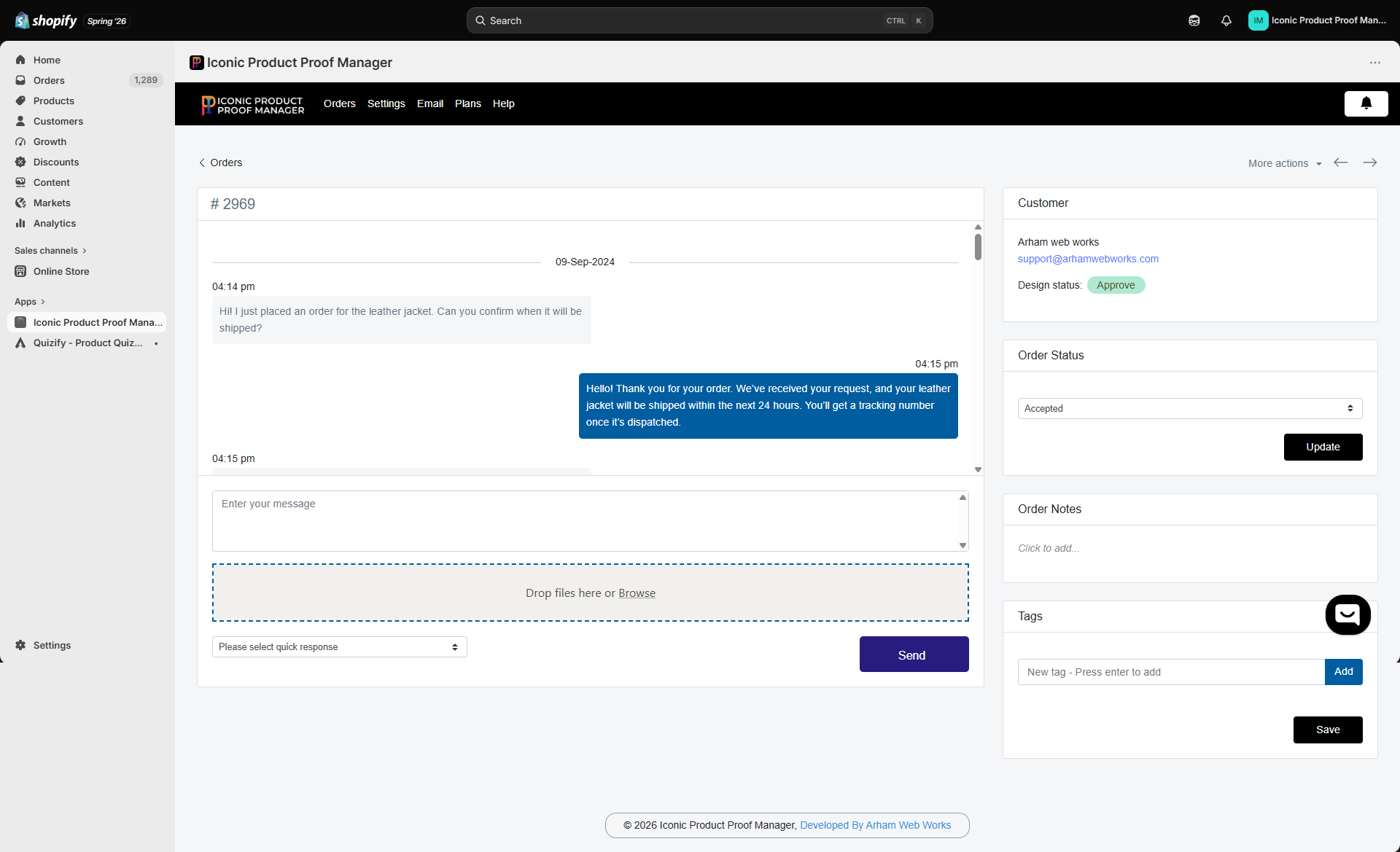 ## Chat thread
The center panel is a two-way message thread with the customer, grouped by date. To send a message:
1. Type in **Enter your message**, or pick a saved reply from **Please select quick response** (see [Quick Responses](/settings/04-quick-responses)).
2. Optionally drag a proof file into **Drop files here or Browse** — images and PDFs are supported (see [Plans & Pricing](/billing/01-plans-and-pricing) for file-type and storage limits by plan).
3. Click **Send**.
Whenever you reattach a file to the same message thread, the customer sees it as a **proof revision** — useful when you're iterating on a design based on their feedback.
If you've enabled **Invoice** in [General Settings](/settings/01-general-settings), you can also send a payment link for extra customization charges from this same panel.
## Customer panel
The right-hand sidebar shows:
* **Customer** — name and email, plus their current **Design status** (`Approve` / `Reject` / pending)
* **Order Status** — a dropdown you use to set the *merchant-side* status (`Not Started`, `Awaiting proof`, `Accepted`, `Rejected`). Click **Update** to save.
* **Order Notes** — a free-text field for internal notes only you can see, saved back to the order.
* **Tags** — add or remove Shopify order tags directly from here; press Enter after typing a tag, then **Save**.
Order Status here is independent from the customer's own approval/rejection. Use it to track your internal workflow (e.g. "Awaiting proof" until you've sent something, "Accepted" once you're ready to fulfill) regardless of what the customer has done yet.
## Unread messages
New customer replies are flagged with an unread count on the dashboard's Orders table, and the order list is sorted to surface unread conversations first.
## Chat thread
The center panel is a two-way message thread with the customer, grouped by date. To send a message:
1. Type in **Enter your message**, or pick a saved reply from **Please select quick response** (see [Quick Responses](/settings/04-quick-responses)).
2. Optionally drag a proof file into **Drop files here or Browse** — images and PDFs are supported (see [Plans & Pricing](/billing/01-plans-and-pricing) for file-type and storage limits by plan).
3. Click **Send**.
Whenever you reattach a file to the same message thread, the customer sees it as a **proof revision** — useful when you're iterating on a design based on their feedback.
If you've enabled **Invoice** in [General Settings](/settings/01-general-settings), you can also send a payment link for extra customization charges from this same panel.
## Customer panel
The right-hand sidebar shows:
* **Customer** — name and email, plus their current **Design status** (`Approve` / `Reject` / pending)
* **Order Status** — a dropdown you use to set the *merchant-side* status (`Not Started`, `Awaiting proof`, `Accepted`, `Rejected`). Click **Update** to save.
* **Order Notes** — a free-text field for internal notes only you can see, saved back to the order.
* **Tags** — add or remove Shopify order tags directly from here; press Enter after typing a tag, then **Save**.
Order Status here is independent from the customer's own approval/rejection. Use it to track your internal workflow (e.g. "Awaiting proof" until you've sent something, "Accepted" once you're ready to fulfill) regardless of what the customer has done yet.
## Unread messages
New customer replies are flagged with an unread count on the dashboard's Orders table, and the order list is sorted to surface unread conversations first.