> ## Documentation Index
> Fetch the complete documentation index at: https://proof-manager-docs.geticonicapps.com/llms.txt
> Use this file to discover all available pages before exploring further.
# Setup Guide
> Walk through the 5-step guide shown on your dashboard
Every new install shows a **Setup Guide** card at the top of the Orders dashboard, tracking how many of the 5 steps you've completed.
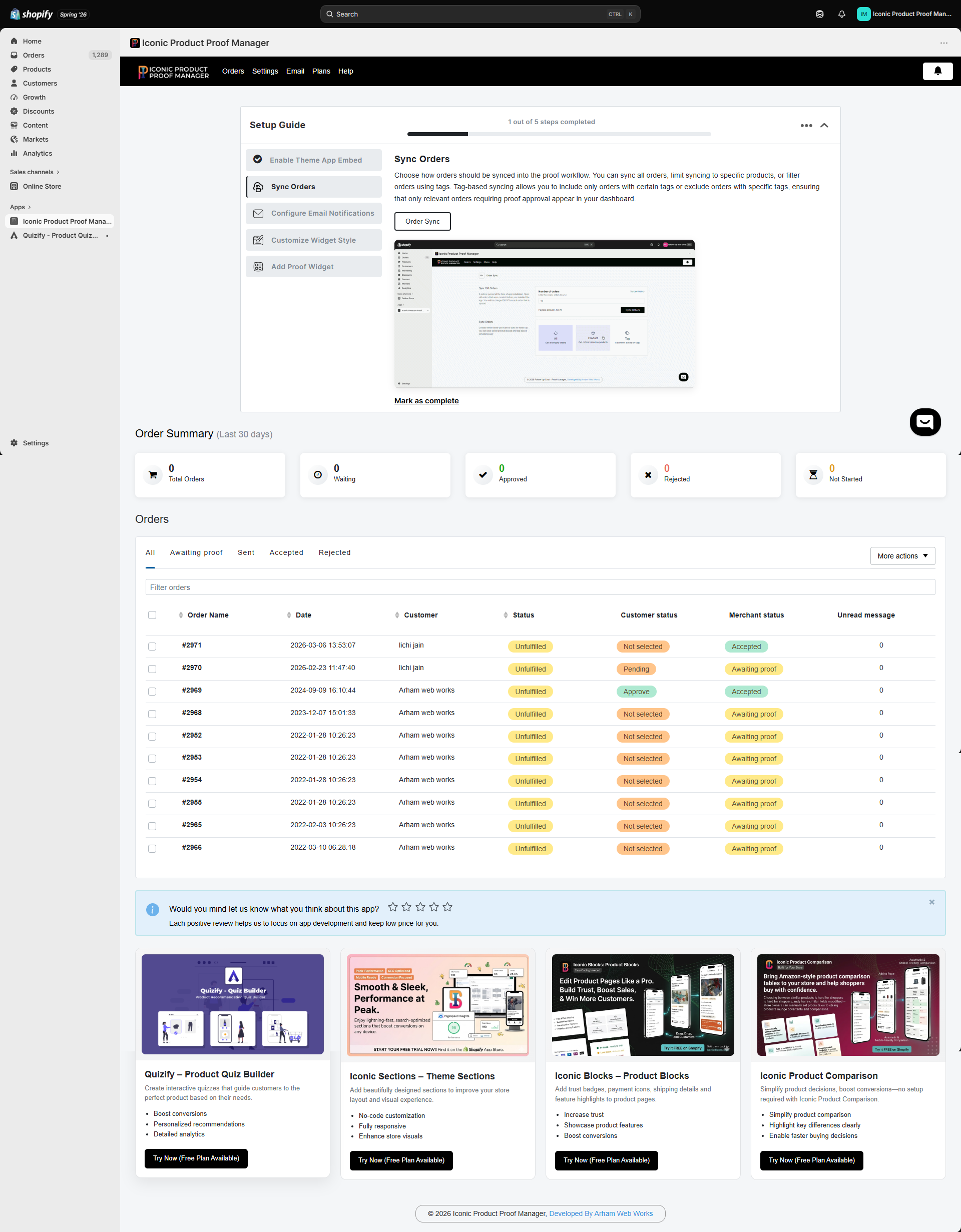 You don't have to complete these in order, and you can dismiss the card at any time — it reappears from **Settings** if you want to revisit it. Each step has a **Mark as complete** link once you've finished it.
### Step 1 — Enable Theme App Embed
Turns on the floating chat widget across your storefront via Shopify's Theme App Embed. Without this enabled, customers have no way to open the chat widget. See [Adding the Widget to Your Theme](/storefront-widget/02-adding-the-widget).
### Step 2 — Sync Orders
Choose how orders flow into your dashboard: every order, only orders containing specific products, or only orders with specific tags (you can combine product and tag rules). This determines which orders get a chat thread and appear in your **Orders** list. See [Order Sync](/orders/02-order-sync).
### Step 3 — Configure Email Notifications
Turn on the email notifications you want sent automatically — to customers when their order is synced, when you send a message or change their status, and to you when a customer replies or updates their approval. See [Email Notification Settings](/email-notifications/01-notification-settings).
### Step 4 — Customize Widget Style
Set the heading/body fonts and the color scheme (chat colors, button colors, system message color) so the widget matches your store's branding. See [Design Settings](/settings/02-design-settings).
### Step 5 — Add Proof Widget
The Theme App Embed adds a global floating chat bubble. If you'd rather show the full widget inline on a specific page — for example your order status or customer account order page — add the **Product Proof Manager** app block to that template from the theme editor. See [Adding the Widget to Your Theme](/storefront-widget/02-adding-the-widget).
You don't have to complete these in order, and you can dismiss the card at any time — it reappears from **Settings** if you want to revisit it. Each step has a **Mark as complete** link once you've finished it.
### Step 1 — Enable Theme App Embed
Turns on the floating chat widget across your storefront via Shopify's Theme App Embed. Without this enabled, customers have no way to open the chat widget. See [Adding the Widget to Your Theme](/storefront-widget/02-adding-the-widget).
### Step 2 — Sync Orders
Choose how orders flow into your dashboard: every order, only orders containing specific products, or only orders with specific tags (you can combine product and tag rules). This determines which orders get a chat thread and appear in your **Orders** list. See [Order Sync](/orders/02-order-sync).
### Step 3 — Configure Email Notifications
Turn on the email notifications you want sent automatically — to customers when their order is synced, when you send a message or change their status, and to you when a customer replies or updates their approval. See [Email Notification Settings](/email-notifications/01-notification-settings).
### Step 4 — Customize Widget Style
Set the heading/body fonts and the color scheme (chat colors, button colors, system message color) so the widget matches your store's branding. See [Design Settings](/settings/02-design-settings).
### Step 5 — Add Proof Widget
The Theme App Embed adds a global floating chat bubble. If you'd rather show the full widget inline on a specific page — for example your order status or customer account order page — add the **Product Proof Manager** app block to that template from the theme editor. See [Adding the Widget to Your Theme](/storefront-widget/02-adding-the-widget).